
















































📢 TXTWRK Update: Introducing the Post Draft Upgrade with Library 💾
Create now. Save locally. Publish when you're ready.
At @TXTWRK, we're continuing to improve how people create, manage and publish content.
Our new Post Draft Library gives members greater control over unfinished posts, including posts containing text, images, videos, audio, checklists and other interactive content.
Instead of requiring every unfinished post to be uploaded to our servers, TXTWRK now supports browser-based draft storage.
You decide when to save, what to keep and when to publish.
---
💾 1. How the New Draft Library Works
TXTWRK uses your browser's IndexedDB storage system to save unfinished post payloads on your device.
A post payload is the collection of information you have entered or attached to a post before publication.
This can include your written content, selected options, attachments and other post settings.
| Feature | What it does |
|---|---|
| 💾 Save Draft | Manually save the post you're creating |
| 📄 Manage Drafts | Browse previously saved post payloads |
| ✏️ Update Draft | Make changes and save over an existing draft |
| 📑 Save New Copy | Keep another version of your post |
| 📂 Open Draft | Return saved content to the post composer |
| 🔎 Search & Filter | Find drafts by name, age or media content |
| 🏷️ Rename | Give saved drafts meaningful names |
| 🗑️ Delete | Remove individual or multiple saved drafts |
| ↺ Reset Post | Clear your current post without deleting saved drafts |
When you press Save Draft, TXTWRK saves your current work locally. Changes made after that save must be saved again if you want to preserve them.
Your saved drafts remain available for later use, provided your browser retains its site storage.
---
🎬 2. More Than Just Saving Text
TXTWRK posts can contain considerably more than a message and a photograph.
Our draft system is designed to preserve the information entered across the post composer.
Supported content and settings
| Post feature | Draft support |
|---|---|
| 📝 Text, topics and assets | Saved form content |
| 📸 Photos | Selected files and preview restoration |
| 🎥 Videos | Selected video files and related fields |
| 🎙️ Voice and MP3 | Audio files and form settings |
| 🎚️ Audio Studio | Project arrangements and recorded takes |
| 📖 Stories | Scenes, media and narration fields |
| Checklists | Items, groups and selected settings |
| 🖥️ Checklist Servers | Selected server information |
| 🛍️ Products | Product form values |
| 📈 Investments | Funding details and settings |
| Events | Event details and dates |
| ❓ Questionnaires | Saved input values |
| 📍 Locations | Location IDs and form selections |
| 🔒 Privacy | Audience and visibility choices |
| 💰 Paid Content | Pricing and subscription settings |
| 📊 CSV and 3D | Supported files and related form values |
| 🌐 Web Impressions | Saved fields and HTML content |
Our aim is to make returning to complex unfinished posts much easier.
---
👥 3. What Happens When Multiple Members Use the Same Device?
TXTWRK links each local draft library to the signed-in member's unique memberID.
For example, imagine two TXTWRK members using the same computer and browser profile.
| Action | Member A | Member B |
|---|---|---|
| Signs into TXTWRK | Member A active | — |
| Saves three drafts | 3 local drafts | — |
| Signs out | Drafts remain stored | — |
| Member B signs in | A's drafts not listed | B's library opens |
| Member B saves two drafts | 3 drafts remain | 2 local drafts |
| Member A signs back in | Original 3 drafts appear | B's drafts remain separate |
•Each member gets their own draft list within the TXTWRK interface.
•Signing out does not automatically erase saved drafts.
•Returning to the same account, browser and device allows that member to reopen their drafts.
•Another member signing in is not shown the previous member's draft library.
A privacy reminder: Member-specific draft lists provide application-level separation, not encryption or complete protection from someone who has access to the device's browser storage. Avoid storing sensitive drafts on shared or public computers.
---
📱 4. What Happens If You Change Devices?
Because TXTWRK's new draft system is browser-based, the location of your drafts matters.
| Situation | Will your saved drafts be available? |
|---|---|
| Close and reopen the same browser | Usually yes |
| Restart your phone or computer | Usually yes |
| Return after switching between apps | Usually yes |
| Sign out and back into the same account | Yes, if local storage remains |
| Another member signs in on the same browser | Only their own drafts are listed |
| Use a different browser | No automatic transfer |
| Sign in on another phone | No automatic transfer |
| Clear TXTWRK browser site storage | Drafts may be permanently lost |
| Uninstall a browser or clear its app data | Drafts may be lost |
Save Draft is not a cloud-backup service. Browser storage may be cleared or evicted, and large media files are subject to available storage capacity.
---
🌍 5. How Does TXTWRK Compare with Other Social Networks?
Different networks take different approaches to unfinished content.
| Platform | Draft approach | Key distinction |
|---|---|---|
| TXTWRK | Manual, browser-based Draft Library | Multiple named post payloads with supported files and settings |
| Drafts for posts and Reels | Primarily device-based editing and content drafts | |
| TikTok | Video draft collection | Drafts are device-dependent and may be lost after app removal |
| X | Post and thread drafts | Draft behaviour varies by application and device |
| Post and article drafts | Some drafts can be continued across devices | |
| Personal and Page draft workflows | Draft management differs between personal posting and Pages |
We also recognise that other platforms offer features such as cross-device drafts that TXTWRK's local-only library does not currently provide.
This is a different approach, designed around user-controlled local saving and the wide range of content TXTWRK supports.
---
💽 6. Why Use Browser Storage Instead of Uploading Every Draft?
There are several benefits to keeping unfinished post payloads locally.
For members
•More control: Decide exactly when to save.
•Less unnecessary uploading: Saving a draft does not submit the post payload to TXTWRK's draft servers.
•Multiple projects: Keep several unfinished posts and return to them individually.
•Media recovery: Selected files can be stored locally when browser storage permits.
•Draft management: Organise older work without publishing or deleting everything.
For the platform
•Fewer unnecessary draft-storage requests.
•Less server storage consumed by unfinished post uploads.
•Reduced dependence on repeated server-side draft saving.
•Separation between preparing content and publishing content.
The distinction matters: saving locally prepares your work for later, while pressing Post sends your finished content through TXTWRK's normal publishing process.
---
🚀 7. How to Save and Reopen a Post
Using the Draft Library is straightforward.
1. Start creating a post. Add your text, media and other content.
2. Press 💾 Save Draft. Give your draft a name.
3. Continue working or leave TXTWRK. Your saved version remains in browser storage.
4. Return to TXTWRK. Sign into the same account using the same browser profile.
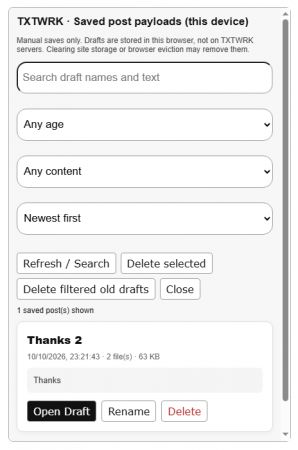
5. Press 📄 Manage Drafts. Browse or search your saved posts.
6. Select Open. TXTWRK loads the saved payload back into the composer.
7. Review and publish. Check restored media and settings, make any final changes, then press Post.
You can also use Save New Copy to preserve an earlier version while continuing to develop another.
What about old drafts?
The manager supports searching, sorting, filtering by age or media, and deleting individual or multiple saved records.
Saved drafts are not automatically removed simply because you reset the composer or publish a post. You can manage or delete those saved copies yourself.
---
⚠️ 8. Important Things to Remember
We want members to understand both the capabilities and limitations of this feature.
1. Browser storage is not unlimited. Large videos and other attachments may reach browser storage limits.
2. Save important work regularly. TXTWRK does not automatically save changes between manual saves.
3. Do not clear your site storage if you need your drafts. Clearing browser data can permanently remove locally saved content.
4. Use the same browser profile. Signing into TXTWRK on another browser or device will not automatically retrieve these drafts.
5. Review complex posts before publishing. Advanced media editors and interactive components may need adjustment after reopening.
6. Wait for a successful save confirmation. If saving fails because storage is full or unavailable, your latest changes have not been safely preserved.
---
🌱 9. What's Next for TXTWRK?
The Draft Library is another step towards making TXTWRK a more flexible environment for creating content.
We're building beyond the idea that a social post must be completed and published in one session.
Our longer-term goal is a creative environment where members can prepare detailed posts, work with different media formats, return to unfinished projects and manage their content before it goes public.
That means continuing to improve advanced editor restoration, media handling and the reliability of local draft recovery.
---
💬 Your Work. Your Timing. Your TXTWRK.
Not every idea needs to be published immediately.
Sometimes you want to write today, add media tomorrow, review your settings later and publish when everything is ready.
TXTWRK's Post Draft Library gives you that flexibility — with manual saving, local storage and multiple draft management tools.
Sign into TXTWRK, open your post composer and explore 💾 Save Draft and 📄 Manage Drafts.
What other draft-management features would you like us to introduce?
@TXTWRK — Helping the world make text work in daily life.
#TXTWRK #TXTWRKUpdate #SocialMedia #Drafts #ContentCreation #DigitalCreativity #CreatorTools #BrowserStorage #WebDevelopment
Read More




COMMUNITY
People